
1. Login to your account dashboard.
2. Go to the "Websites" tab and click on the client site.
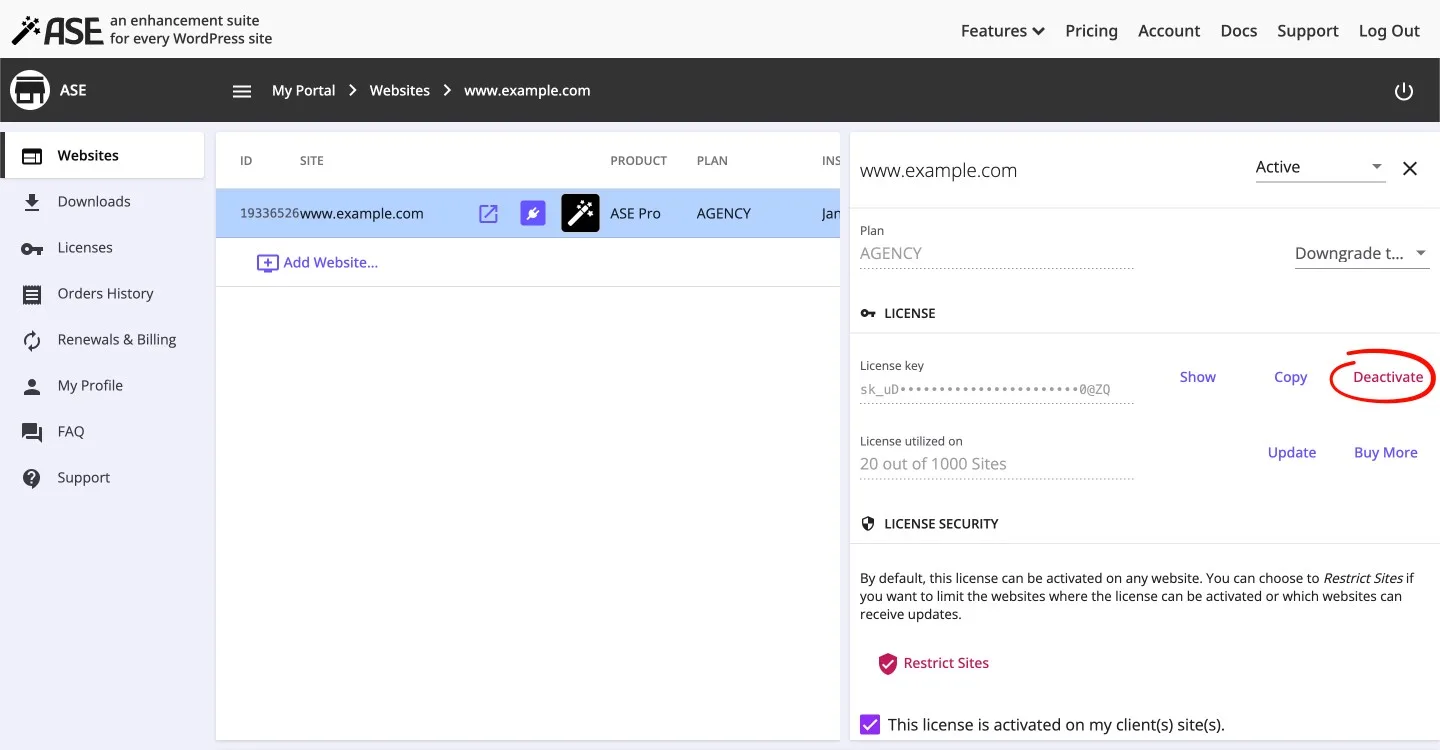
3. Click on "Deactivate" in the "License" section, as shown in the screenshot below.
2. Go to the "Websites" tab and click on the client site.
3. Click on "Deactivate" in the "License" section, as shown in the screenshot below.
Please note that it may take up to 24 hours for the deactivation to take effect. Once the license is deactivated, all the Pro features will be deactivated and ASE will revert to the free version. So, if for example, there is a "Team" page that depends on a 'Team' custom post types and a "Team Member Info" custom field group created with the pro-only Custom Content Types module, it will no longer be displayed correctly on the frontend.
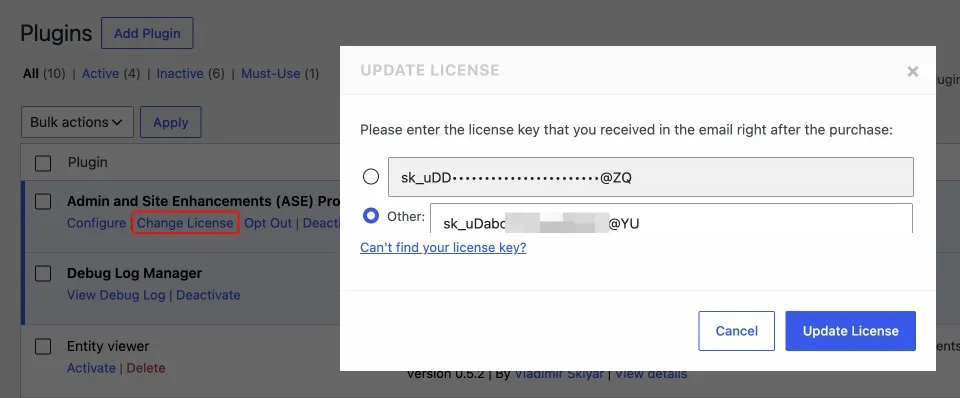
So, it is wise to provide grace period to the client, e.g. 14 days, should you want to instruct them to purchase ASE Pro license on their own and switch to it. Note that your client can click on "Change License" in the ASE Pro row of the plugins listing in wp-admin and enter their license key to perform the switch, as shown below.
So, it is wise to provide grace period to the client, e.g. 14 days, should you want to instruct them to purchase ASE Pro license on their own and switch to it. Note that your client can click on "Change License" in the ASE Pro row of the plugins listing in wp-admin and enter their license key to perform the switch, as shown below.